

Agent panel
The settings of one chat in one place, with tools, memory, approvals, the browser, image and video engines, skills and MCP servers.
The agent panel holds what the agent may use. The rows at the top are for the chat you are in. The rows of the Tools tab, the engines and the Skills tab are saved to your account and apply to every chat.
Where the agent panel is: the chat composer: the first button at the left end of the row below the message box, left of the model picker. It opens a panel with the "Tools" switch and, with tools on, the "Memory" switch, the rows "Other chats & projects" and "Approvals", and the tabs "Tools", "Skills" and "MCP".
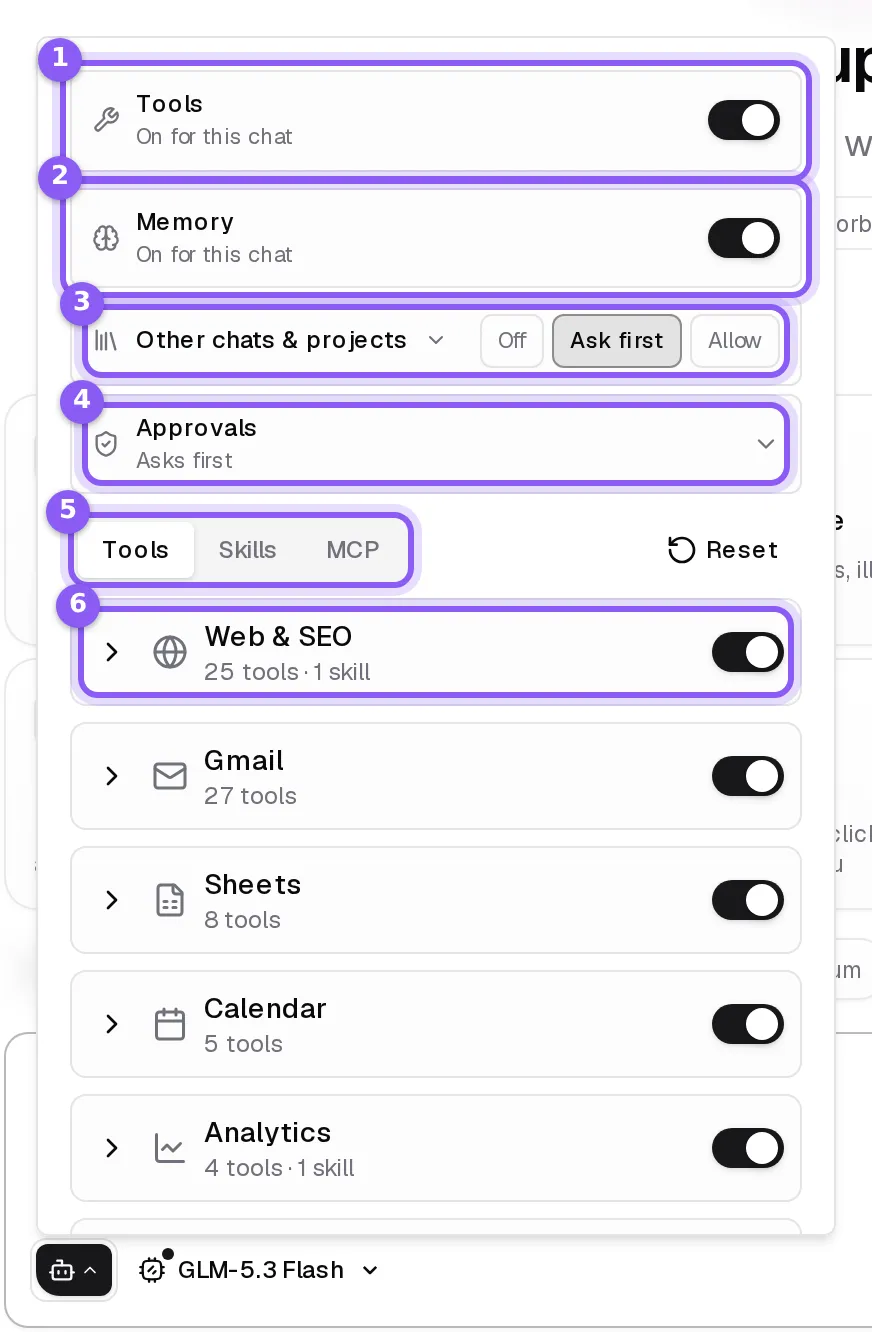
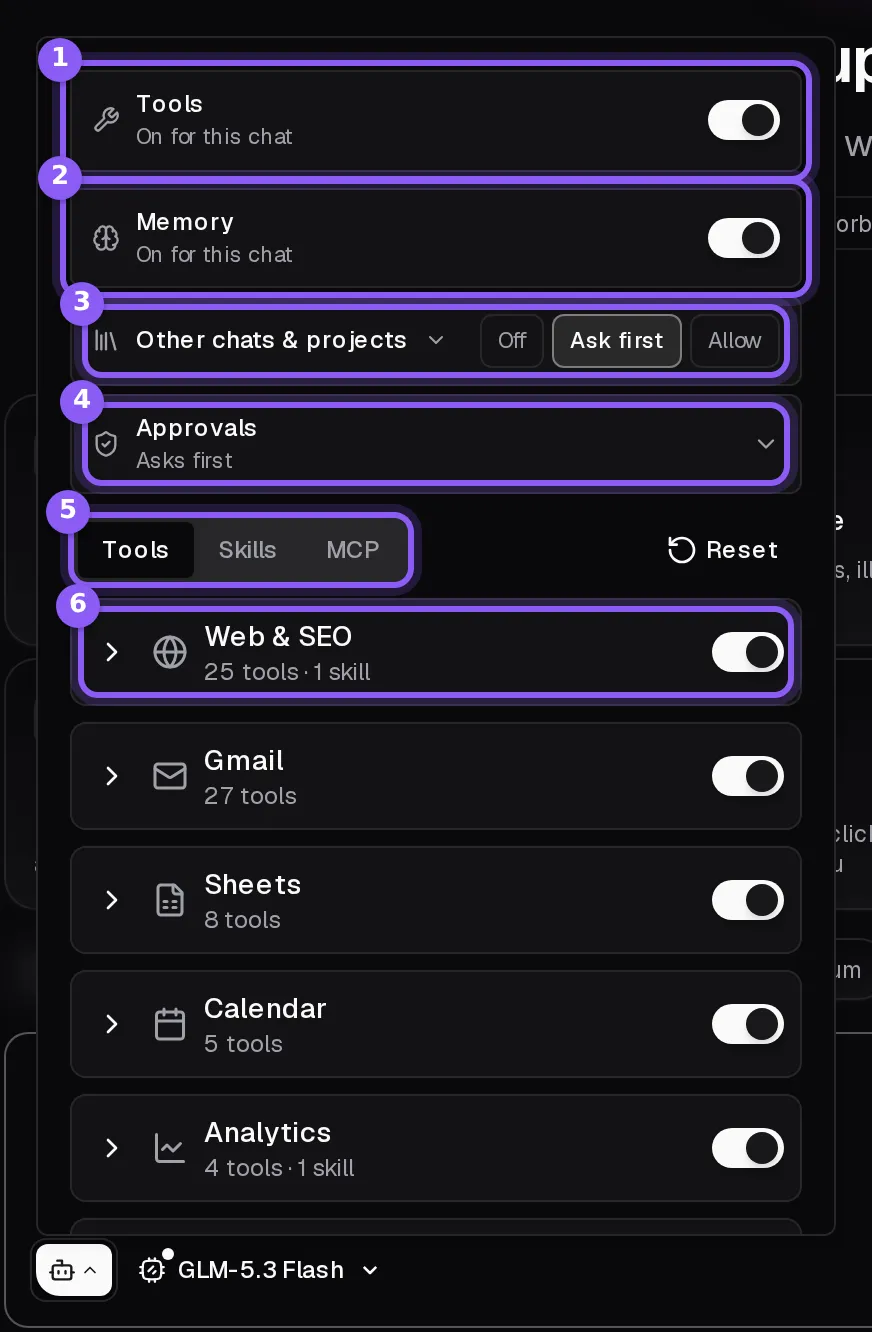
From top to bottom
- Tools: on, the agent can search the web, use your connected accounts, run code, browse and build. Off, the chat is a plain conversation with the model you picked. See Chats.
- Memory: whether this chat's agent may recall what it remembers about you and use its memory tools. See Memory.
- Other chats & projects: whether this chat's agent may look at your other chats and projects: Off, Ask first or Allow. The arrow beside it sets the default for all chats.
- Approvals: what this chat does without asking. Closed, it says so in a few words; opened, it has a switch for each kind of action. See Approvals.
- The tabs Tools, Skills and MCP, below.
With the Tools switch off, the panel shows only that switch, because nothing else applies to a plain conversation.
The Tools tab
Each row is one kind of work, such as web search, Gmail, the browser or coding. A row's switch turns it on or off for you, in every chat; its arrow opens the single tools inside it, each with its own checkbox.
Two rows have settings of their own:
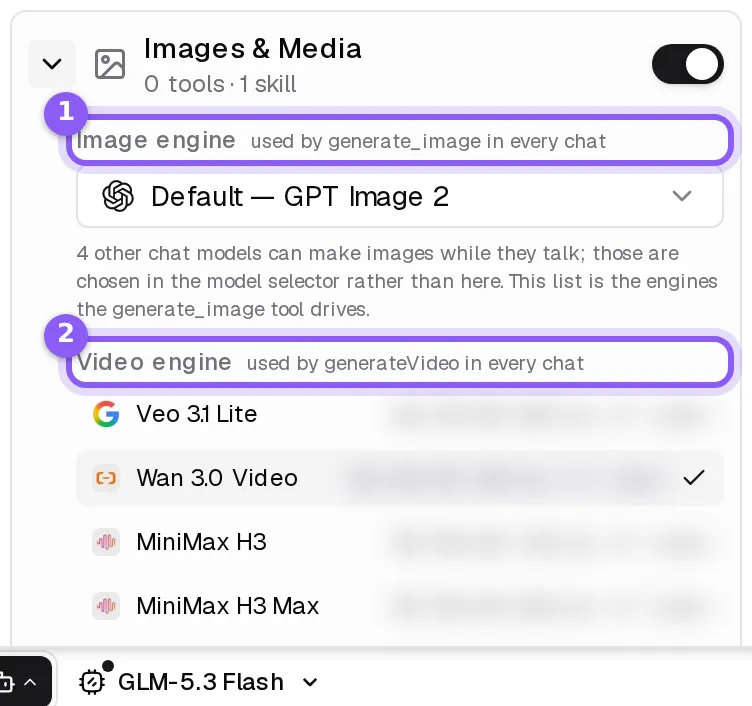
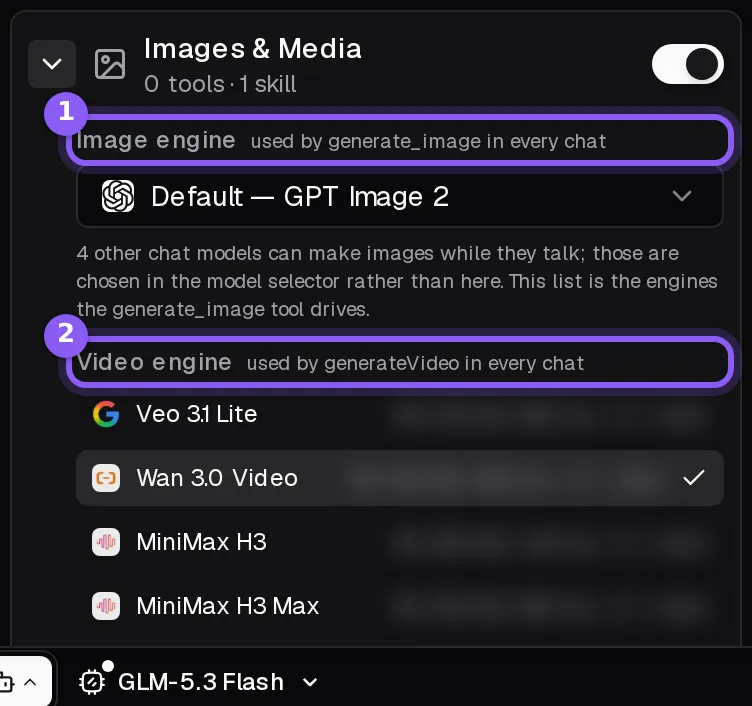
- Images & Media: Image engine and Video engine, the engines the agent draws with. They are saved to your account and used in every chat. See Images and video.
- The browser row: whether this chat uses the cloud browser or your own Chrome (Cloud, My browser, Auto or Ask first), your default for all chats, and the cloud browser's Session Settings. See Browser.
Reset switches every row back on, after asking you.
The Skills tab
Your skills library: switch skills on or off, search, and discover new ones. See Skills.
The MCP tab
The outside servers you connected, each with a switch for this chat and, under its arrow, All, None or Only some of its tools. With none connected, Manage connections opens Integrations. See Integrations.
The dots on the button
- An amber dot: memory is off for this chat.
- A green dot: this chat allows some actions without asking.
- Tools off beside the button: the chat is a plain conversation, and a click turns tools back on.